

We are very excited to introduce Script Bay!
Script Bay is a FREE script panel replacement for the entire Creative Suite CS5.
It currently works in InDesign, Photoshop and Illustrator. It is partially compatibility with Flash and Fireworks and to a lesser extent, Bridge.
No, Script Bay will not work in CS4 or earlier. It’s built using the new CS SDK which Adobe introduced for CS5. It’s quite impossible to make it compatible with any version of the Creative Suite prior to CS5. Sorry… 
Script Bay is very much a “work in progress”, but it is already far more usable than the script panel in InDesign, and without question more usable than the non-existing ones in Photoshop, Illustrator! We hope to add many exciting new features to Script Bay in the future!
Here’s a quick overview of the current features:
- Script Bay offers the ability to run scripts located anywhere on your hard drive.
- Scripts can be viewed in either a list-view or tree-view.
- The list of scripts can be dynamically filtered, and scripts can be launched via keyboard navigation.
- Scripts can be edited directly in the built-in Script Bay script editor.
- Multiple scripts or folders full of scripts can be run in a single command.
- Script files can be moved, duplicated, deleted, and renamed directly within the panel.
- Scripts run in the Script Bay panel can be undone in InDesign as a single undo.
- Scripts can be easily “installed” into the host application.
- Script Bay has a default “cross-application” folder, and scripts placed in this folder are automatically available to all CS applications.
- Script Bay supports drag & drop for moving around script files as well as loading scripts into the script editor.
- Scripts can be added to Script Bay from anywhere on your hard drive by simple drag & drop.
We have more exciting plans for Script Bay, and we hope you enjoy Script Bay as much as we do!
Installation:
- Download the latest build of Script Bay from here.
- Double click on the zxp file which should open Extension Manager CS5. (If you are running Windows Vista or Windows 7 with UAC active, you might need to launch Extension Manager as an administrator first.)
- Upon launching Extension Manager and initiating the installation, you will see the following window:
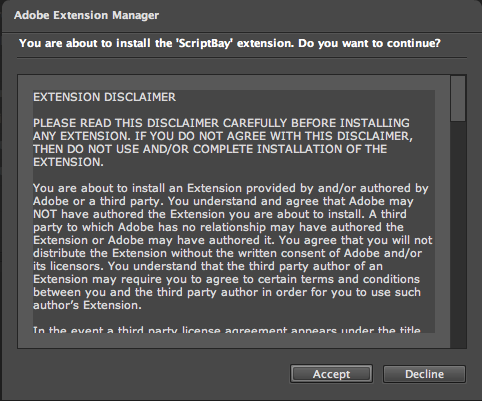
Click Accept. - You will then see this scary window:
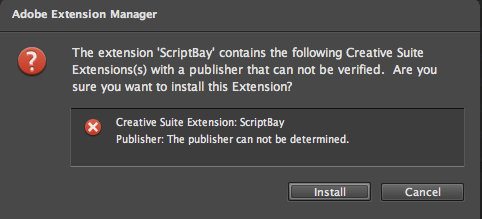
Click install. Don’t worry. All this means is we didn’t yet spend a few hundred dollars on a fancy electronic signature to make this scary window go away.
Use:
Once installed using the Extension Manager, Script Bay will be available for use in all the supported Creative Suite applications. With the exception of InDesign, Script Bay is available via a menu item in the Extensions sub-menu under the Window menu. In InDesign and InCopy, it is available in the same sub-menu as the built-in Script panel (i.e. in the Utilities sub-menu.)
Using Script Bay should be very self explanatory. You can launch a script by double clicking on it, by right clicking and selecting run script, or by clicking on the Run button. If multiple scripts are selected, the run button will run them all.
For a script to be edited in Script Bay’s script editor, the script editor must be visible. You can reveal the script editor by clicking on the code button: 
Once the script editor is open, you can click on the “edit” button to load the currently selected script, or just drag a script into the editor area from either the script list or tree, or from a file in you computer’s file system.
When you are finished editing the script, you can run it directly from the editor to test that it works correctly, or save it into the currently selected folder.
To quickly run a script, you can type part of the script name into the script filter, and launch the script by hitting “return”.
Known Issues:
- Drag and Drop does not work perfectly in all the applications. The application which apparently has the most issues is Photoshop. The problems apparently stem from some bugs in the CS SDK, and Adobe is working on solving these issues.
- Scripts in InDesign are all run under a single persistent engine. #targetengine directives are currently ignored. We hope to deal with this issue at a later date.
- The script editor currently supports Javascript and ExtendScript only. AppleScript and VBScript can not be run from the script editor.
- Applescripts and VBScripts in Photoshop and Illustrator do not currently work when run from Script Bay.
- A number of the commands do not yet work in Fireworks and Flash. These include Rename, Open, Reveal, Install, and Reveal Installed Scripts.
Here’s a few screen shots:
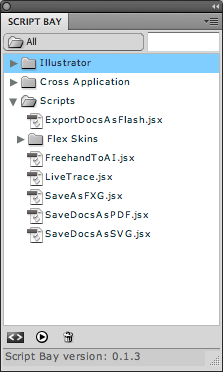
Script Bay Tree View
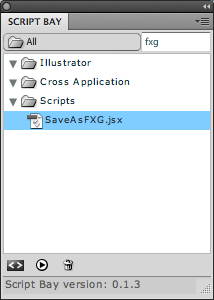
Filtered Script List
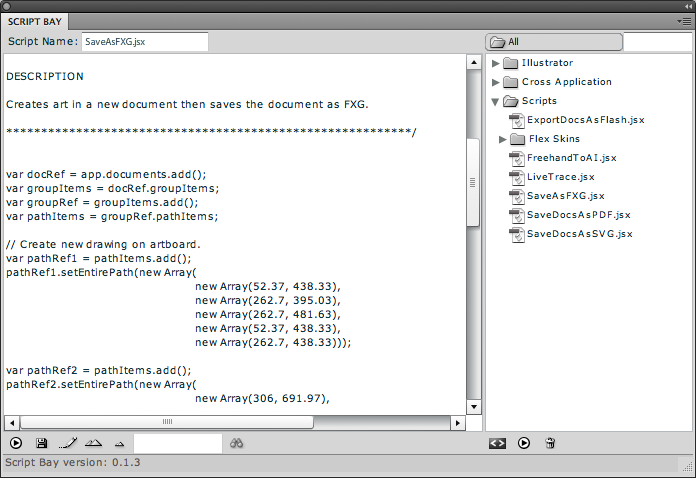
With Script Editor Open

Way to go Harbs! And for free? Can’t thank you enough!
For all the Windows users out there, just delete the .zip and the end of the file name and then double click to install.
Hi Zev,
Thanks for pointing that out! I just fixed that.
It was a problem with zxp files being defined on the site as “x-zip-compressed” instead of “octet-stream”…
Nice and so powerful.
ScriptBay already is the best tool of the year!
Thanks for the gift 😉
Great stuff, Harbs!
Peter
Very Cool!
Thanks for providing it.
Gregor
on the zxp file ?
There is none in the zip file.
You should get a zxp file — not a zip file. The zxp file should be opened by Extension Manager.
Way to go, Harbs! Great work!
[…] have all the capabilities or AIR applications, and all the functionality of integrated scripts. Script Bay is one example of such an extension. Mini Bridge, CS Review, and Kuler are other […]
What zxp file? There is no zxp file in the .zip archive that downloads from your link.
It’s not a zip file it’s a zxp file. It’s possible that your operating system is adding a zip extension to it. If yes, I’d like to know the details, because it should not be happening.
If it’s adding a zip extension, change the extension to zxp (or remove the extra extension), and it should work.
[…] system which is relevant to Illustrator script users and developers. To quote from their announcement (in which is buried the download link): Script Bay is a FREE script panel replacement for the […]
I like this:
” # Scripts run in the Script Bay panel can be undone in InDesign as a single undo. “
This is great. Thanks, Gabe. BTW, is there any way to turn off Tool Tips in Script Bay? I tried turning off Tool Tips in ID Prefs, but even that didn’t work?
Scott
Hi Scott,
There’s currently no way to disable the tool tips. Are you referring to the file paths on files in the script list, or the button and drop down tips?
The file paths in the script list. They tend to get in the way of reading the scripts’ names.
@Scott:
Thanks for the suggestion!
I just added a toggle to show/hide the script path for both the tree-view and the list view. It will be off by default.
You’ll see it in the next build…
[…] you are new to Script Bay, please read this post for full installation […]
Scott’s request is now available in version 0.1.4 (as well as some other nice improvements!).
[…] all the neat things InDesign can do with typesetting world languages. In-Tools also makes the free ScriptBay: If you use scripts with InDesign, Photoshop, Illustrator, or any of the other Creative Suite apps, […]
[…] If you are new to Script Bay, please read the original post here. […]
There are a few issues I want to mention in Illustrator, at least this happens to me:
1. When I expand a script folder inside Script Bay by double-clicking it starts to run all the scripts inside. Force quit Illustrator was the only way out since I have plenty of scripts in the folder.
2. I am using a script to change some text on paths. I have to nudge the text strings a little with the arrows. Selection inside Script Bay nudges at the same time, up and down instead of waiting on the same script.
3. The Script Bay extension does not appear hooked to other panels when I open up Illustrator although I left it hooked before a normal restart. But when I fetch it again from the Extension menu it hooks to the same panels as before but with unexpected movements, moves to right on the screen and the whole panel is closed. I have to drag down to open the scripts view.
But basically I like this extension very much and I am looking forward to new updates.
@Sigurdur:
Thanks for your comments!
1) This is actually a feature. Script Bay allows chain-running of scripts, and double click is one of the ways to run scripts. To open folders with the mouse, you should click on the arrow. You can also open and close folders using the keyboard arrow keys. (The right arrow opens, and left arrow closes.)
2) I did not understand your issue. Can you explain it better?
3) Yes. I’m aware of this issue. It’s a bug in the CSXS subsystem in Illustrator. (The other apps do not have this problem.) As far as I know, all CS extensions suffer from this in Illustrator. I’ve reported this to the engineering team at Adobe. I don’t know if this will be fixed for CS5. The workaround is to not group CS extensions with other panels…
I reinstalled Script Bay and played around with it in earnest, and here are a couple of comments.
1. Brilliant tool, very helpful.
2. I added the folder where my CS5 scripts are, and this was shown as “Scripts Panel” in Script Bay’s window. Maybe add “CS5” to show the ID version. By the time CS6 arrives and I add its script folder, I end up with two folders “Script Folder”. And since I don’t like tooltips there’s no way of telling which folder belongs to which version.
3. “Hide script file pathe” doesn’t appear to work.
4. The context menu in the file list (right-click) lets you add a new folder, but not delete any. If you accidentally created a new folder you have to go somewhere else to delete the “New Folder”. Can you add a “Delete Folder”?
5. Maybe it’s useful to add a button somewhere “Clear editor window”, which also removes the script’s name.
6. Can you do syntax-highlighting?
Great extension — thanks.
Peter
Hi Peter,
Thanks for the comments!
2) I actually just use one folder for all versions of InDesign. If it needs to be versioned, I put it in a version folder. That helps a lot with my script bookkeeping… 😉 That being said, I see your point about the Default folders that Script Bay creates. I’m not sure how to handle that with the eye to the future…
3) What do you mean? When you select the option, you still see the tool tips?
4) That’s a bug in the latest build. It’s already fixed in the next one.
5) Okay. Someone else asked for the same thing. Should that also clear the undo memory, or should I preserve that?
6) That’s on my list of things to look into. I also hope to implement code-completion and a function library for easy insertion of commonly used functions.
Keep the suggestions coming!!!
I really have a lot of amazing plans for this and I’ve only scratched the surface…
> 3) What do you mean? When you select the option, you still see the tool tips?
I thought, “Option? What option?” Then it dawned on me that Script Bay looks at InDesign’s settings. So to disable tooltips in Script Bay you have to disable them in InDesign. I think that that’s a good idea only if you can also do something about the speed at which they appear, as in ID: Normal (which is with a delay), Fast (which Script Bay defaults to whatever ID’s setting), and None.
Nasty bug, by the way: double click a folder and Script Bay executes all scripts in that folder. So there I was pressing Cancel, Close, Stop, Halt, Exit, Stready on now, Hold it, etc. 386 times…
Great extension though!
> I really have a lot of amazing plans for this
Go to it!
I see the Script Bay panel just fine in Photoshop, but in Illustrator, it’s blank (i.e. no scripts, script folders, and actually, not even the main panel elements). Any ideas?
-J
P.S. Both are CS5, of course.
Hi Jason,
Try restarting Illustrator. It could just be a fluke. If that doesn’t help, let me know, and I’ll try to see if I can figure out the problem…
yep, I’m pretty well-versed in trouble-shooting (although I’m not a programmer by any means). I tried:
– restarting Illustrator (several times)
– trashing my Prefs file
– uninstalling Script Bay via Ext. Mgr.
– reinstalling Script Bay via Ext. Mgr.
– removing my “Scriptographer” plug-in
… I think that’s all I tried, but I might be missing something. FWIW, I do have a few custom plug-ins for Ai CS5. Not sure if those could be getting in the way. (FILTERiT, Xtream Path, Curvius and Phantasm) are the ones I have installed, FYI.
Hi Jason,
I’ll send you an email to try to follow up on this…
Hi…Firstly it was working perfectly but I did uninstall Script Bay via Ext. Mgr. and reinstall the tool but Script Bay’s panel is empty…I tried several way but the tool doesn’t work..Help!!!
In which app?
illustartor CS5 15.0.0 verision…It dosen’t work also in design too…
i check it out in photoshop script bay working in photoshop…
I see the Script Bay panel just fine in Photoshop, but in Illustrator, it’s blank (i.e. no scripts, script folders, and actually, not even the main panel elements). Please help!
Got it working properly now… Just wanted to leave a comment expressing my appreciation for this panel (and for the troubleshooting help).
Until now, using scripts in Illustrator has been hit or miss for me (usually more “miss” than “hit,”). I used to end up wasting a lot of time just trying to get my head around what scripts I have, and what each one does.
This tool changes everything. It eliminates the tedious process of experimenting with scripts, and finally makes scripts a practical part of my workflow. Thanks for this!
-J
Hi Jason, I am having the exact issue in illustrator CS6. It was working fine till a technician came by to “fix” some permissions issue. Thereafter, the Script Bay panel in Ill CS6 shows up blank. Indesign and photoshop weren’t affected though.
When I logged in to my temporary account to test, Script Bay panel works fine! What was your solution? Do you have any advice for me?
Thanks!
yjling.
Not a big fan of leaving my 2 Sense around on these comment boards, but WAY TO GO! This is by far the most powerful panel I’ve ever used. As a designer and developer, this tool lets me be in both worlds at the same time. I really appreciate what you’ve made here and, again, good job!!
[…] kostenloser Ersatz für das Skriptenbedienfeld nicht nur, aber auch für InDesign. Auf der Webseite sind diese Vorteile […]
Just dropping by again to mention an issue that appears with Script Bay on a regular basis. Essentially, every so often, Script Bay loads ~15 iterations of itself at once. This happened with Adobe Illustrator CS5 and now with CS5.5. I can’t discern what triggers it to do this, other than that it always happens when I load my one and only workspace layout for AI (via the Window menu). The only solution I’ve found is to completely uninstall SB via the Extension Manager, trash the preference/cache files for AI and for EM, and reinstall SB. Even then, sometimes it continues to “self-replicate,” causing me to have to try all that again. I love SB, but this issue is exceedingly irritating. Any ideas?
I’m using Lion now… and CS5.5… but the issue was the same with Snow Leopard and CS5. It only happens (or I only notice it happening) in AI (b/c I don’t use SB in Photoshop or any other app).
Cheers,
-J
There’s a number of issues with CS Panels in CS5. CS Panels and workspaces don’t mesh very well. Nor does docking them with other panels.
If you can keep Script Bay independent from other panel groups, it might help your issues. FWIW, there’s good hope that CS Panel issues will be fixed in CS6…
Hi Harbs
Yesterday run into the same bug that Peter did
“double click a folder and Script Bay executes all scripts in that folder. So there I was pressing Cancel, Close, Stop, Halt, Exit, Stready on now, Hold it, etc. 386 times…”
(that’s what caused the “confidential” water mark problem)
Any fix on the way or alternative way of stopping the run?
It’s not a bug. It’s a feature. (i.e. you can batch run a bunch of scripts) 😉
That being said, I do recognize that you might not want the “feature” (especially when you accidentally double click on a folder full of scripts), so I might make it a preference or limit the multiple running of the scripts to the button or the context menu…
It’s also not a bad idea to halt the whole batch of scripts when one is halted in the middle. I’ll look into that…
Hi,
I installed the script panel in Photoshop CS5 (12.0.4), added scripts and it looked like it was working well until I tried to edit a script. Clicking on expand the width of the panel and does not start an editor, is this normal?
I also added a folder and I don’t need it anymore, how can I delete it?
Thanks in advance for all replies.
Pierre
The editor window opens blank.
To edit a script, drag the script from the list into the editor window.
To remove a script folder, select the folder and select the flyout menu. You should see a menu option “Remove Script Folder”.
Thank you very much. Must have been tired for not seeing the editor in the panel.
Thanks for this tool, definitely a time saver!
[…] a little cumbersome to trigger one. Thankfully there is a pretty cool free extension called Script Bay that makes using scripts a lot easier! I tweeted about this extension from a post by John Wundes, […]
Extension Manager refuses to install due to certificate, I get no option to override it?
That’s probably due to a known bug in Extension Manager.
You can read about it and download a patch from here:
http://blogs.adobe.com/cssdk/2011/12/fix-for-extension-signature-bug-on-mac-os-10-7-patch-posted.html
Excellent, worked a teat thanks!
[…] a little cumbersome to trigger one. Thankfully there is a pretty cool free extension called Script Bay that makes using scripts a lot easier! I tweeted about this extension from a post by John Wundes, […]
[…] it’s a little cumbersome to trigger one. Thankfully there is a pretty cool free extension called Script Bay that makes using scripts a lot easier! I tweeted about this extension from a post by John Wundes, […]
I run into the same bug that Jason did(i.e. Script Bay panel display blank in illustrator..)but it just work fine when i first time launch.
I’ve no idea why it’s got blank today,I’ve read all replies but still can’t find solution, please help me~
Thanks in advance for all replies.
[…] หน้าตาของมันก็เป็นแบบนี้ล่ะครับ สำหรับใครที่สนใจอยากใช้ก็เข้าไปโหลดจากเว็บนี้ได้เลยครับ กดเลย! […]
Mac. CS5. Only gray background are in the Script Bay panel.

This is terrific! Thank you.
Is there any way you can make hotkeys trigger scripts? I used to be able to do this with the standard Edit Keyboard Shortcuts… in Illustrator CS(1), but CS5.1 has removed this ability.
Hi Richard,
That’s a very popular request. There’s no easy way to implement this functionality in Illustrator…
Grrr. Lousy Adobe. Ah well. Still don’t get why CS allowed you to do this and they removed it from later versions…
[…] it’s a little cumbersome to trigger one. Thankfully there is a pretty cool free extension called Script Bay that makes using scripts a lot easier! I tweeted about this extension from a post by John Wundes, […]
My illustrator (15.1.0) reliably crashes when I click “Add Folder” in the script bay.
(OSX Lion – Adobe extension manager patch installed)
Is there a troubleshoot step I overlooked?
Many thanks! Love the panel!
Hi Herman,
Hmm. There’s a know bug where CS Extension folder dialogs causes a crash in Lion. That’s probably what you are seeing. There’s a workaround, and I’ll have to find the time to implement it into Script Bay. It’ll probably be a week or two before I can get to it though. Stay tuned…
Hi Harbs!
Thanks for the super quick reply
-It seems to have sorted itself out, the only difference being that I have filled the default illustrator folder with my scripts.
Leading me to believe that if there are no scripts listed, the dialog window crashes. So for now, I’ll merrily enjoy the panel!
Thanks again!
I stumbled upon this extension and want to use it, but Extension Manager CS5 is spitting out an error in terrible English that says “The extension ‘ScriptBay’ does not contain valid signature. The extension will not be installed.” Any way around this?
It’s a known bug in Extension Manager. You can read about it and download the update that fixes it here:
http://blogs.adobe.com/cssdk/2011/10/fix-for-extension-signature-bug-on-mac-os-10-7.html
I run the script fine when installed, after some time Script Bay panel display blank in illustrator.
I have reinstalled but still it is blank.
Thanks
Please reply. One more thing that it will work on CS6 too.
Thanks in advance.
Regards,
Sachin
I’m not sure why that happens.
You can try to remove the preferences file as explained above.
I’m working with Photoshop x64 CS5.1. I have problem with the clipboard (select Image and Paste in new Layer).
As soon as I disable the extension scriptBay works copy + paste normaly.
That sounds odd. I have no idea why that would be…
I took notes in various forums on a problem with clip board and panel (flash UI) in CS5 and CS5.1. If a script is executed on Panel, it can Clipboard Influence. I testet with Adobe Configurator 3; same Problem.
My simple Script:
var doc = app.activeDocument;
doc.selection.selectAll();
doc.selection.copy();
doc.artLayers.add();
doc.layers[0].name = “test”;
doc.activeLayer = doc.layers[0];
doc.paste();
doc = null;
Actual Workaround to use:
duplicate()
that is groovy! Will be a huge time saver. you plan on ever adding syntax highlighting? I know there are a few free libraries out for this.
[…] You can get more info on it as well as download it here: http://in-tools.com/article/script-bay/script-panel-replacement-for-the-entire-creative-suite/ […]
When using the Extensions Manager, I receive the message:
“The extension ‘ScriptBay’ does not contain valid signature. The extension will not be installed.”
I hit okay…
Then it says the same thing for each product. Suggestions?
Nevermind… a little hunting around and I found this to fix it:
http://blogs.adobe.com/cssdk/2011/10/fix-for-extension-signature-bug-on-mac-os-10-7.html
Download the appropriate CS File and follow the directions in the Read Me. FIXED!
Is there any way to get this hotkeyed? I looked at the documentation and find nothing with regards to a Function Key or a three button Hotkey sequence. When I worked on a PC it was so wonderful to hit Command F + P (I think… it’s been a long time!) and the first letter of the script to run it. It would be wonderful if the Script Bay allowed for such speedy usage on the Mac!
Hey, ScriptBay is very nice. But at work (Win Server 2008, Illustrator CS5) i installed ScriptBay and when i started it, illustrator crashed every time. At home with Win7 and IllustratorCS5 it works fine.
Any idea why it crashed?
thx, philipp
No idea. I can’t think of anything that would make Illustrator crash. Do you have trouble with other extensions?
Did you try cleaning your Illustrator preferences?
One thing you can try is to remove the CSXS prefs file.
hi harbs,
thx for answering. i didn’t check other extensions. i will try to clean illustrator prefs. Please can you tell me, where i can remove the CSXS prefs?
philipp
THANKS a million!
I see the Script Bay panel just fine in Photoshop, but in Illustrator, it’s blank (i.e. no scripts, script folders, and actually, not even the main panel elements). Same error.Please help…
– restarting Illustrator (several times)
– trashing my Prefs file
– uninstalling Script Bay via Ext. Mgr.
– reinstalling Script Bay via Ext. Mgr.
Still not working on AI
P.S. Both are CS5, of course.
Just some quick questions:
1. what is the latest version of ScriptBay?
v 0.1.5 ?
2. I tried using v 0.1.5 with InDesign CS5.5 v7.5.3 (German) and after install all I get is an empty gray field without the version number bar at the bottom.
I also have ADPS installed. Could it be possible that the plug-ins destract ScriptBay?
After expecting the manifest.xml of the installer zxp file I realised that there is an entry for InDesign CS5 and not for CS5.5. Does that mean I cannot use ScriptBay with CS5.5? Or should I change the manifest.xml to the dot version numbers?
E.g.:Host Name=”IDSN” Version=”7″
to:
Host Name=”IDSN” Version=”7.5″
3. I also installed ScriptBay 0.1.5 with InDesign CS5 v7.0.4 (German).
After the install I got an (nearly) empty panel with two folders present: “InDesign” and “Cross Application”.
Is that how it works?
Or should the folders be automatically populated with scripts located in the Scripts folder of InDesign?
Finally I managed to drag some folders with scripts to the ScriptBay panel by changing my workspace from “Application Frame” to “Application Bar”. The trick here was to first select the folders I wanted to drag in the Finder, then bring InDesign CS5 to front and finally drag the folders to the panel…
However, the names of nearly all dragged folders changed to ” Copy”, ” Copy1″, ” Copy2″ etc. (note the blank in front of the name). Two exceptions: the names of the folders “Version 5.0” and “Version 6.0” were copied unchanged. All names of all subfolders translated flawlessly.
So I had to rename the folders actually seen in the file system (Mac OSX 10.6.8) under my user directory in the documents folder.
So far I could test now the scripts in ScriptBay are working…
Maybe you can shed some light on the issues?
Thank you very much,
Uwe
I have installed Script Bay CS%. The Script Bay panel shows up in Illlustrate and Photoshop but not Indesign — Nnott under Utilties or Extensions tab. The Extension Manager shows that it is loaded.
ANy clues where It might be or what is stopping it from loading.
Thanks
hello, I got the same question about Script Bay panel. it’s only a panel. and with empty working area. no script folder, not option button. nothing showed. I used it before. and it’s working fine. I don’t know why cause this. I just found some person has the same issue with me. so it’s there any solution for this?
my software version: CS6
BTW: I can use it in Photoshop.
Hi.
I accidentally added another Illustrator folder to the script bay folder list, which I cannot remove. Would it be possible to update the script bay so that it wouldn’t allow adding the default script bay folders again, or to add an option to delete any folder on the list?
Thanks.
[…] Further detailed information can be found here. […]
Hi,
Adobe Extension Manager CS5.5 (Version 5.5.163) refuses to install the ScriptBay extension, with the following message:
“The extension ‘ScriptBay’ does not contain valid signature. The extension will not be installed.”
It then goes on to informs me, one by one, that it will not install the extension in each of the CS applications.
I have checked and unchecked the warning options in the Preferences panel with no change.
Is ScriptBay no longer installable? Or am I missing something in Extension Manager?
Thanks in advance for any advice.
[…] ScriptBay panel for executing scripts. You may download it for free here. ( You may also check this link about installing ScriptBay to Adobe […]
This is extremely helpful. Thank you.
This is great. I don’t understand why adobe has a scripts panel in indesign but nothing else….
Script Bay Feature Request: Button Mode.
Additionally, an Icon-sized button mode. (perhaps using user-made png files with the same file name and path as the script?) So you can have more scripts in less space.
It would be great if the folders in Script Bay could be listed first (folders on top) and also include a fresh script list option if the scripts are added or renamed from outside of Illustrator (ex: through the OS file manager). Thanks for creating this great addition to Creative Suite.
Yesterday Script Bay used all worked, for me Win 8 CS 6, a panel was opened in all programs, scripts were loaded scenarios were executed, today started panel simply white, overloaded a computer, piugin reinstalled, there is nothing helped identically white panel, so it is sorry this Script Bay very pleased to me !!!
It looks like Script Bay’s digital certificate has expired! The panel will no longer run and trying to reinstall the extension results in the following error: “The extension ‘ScriptBay’ does not contain a valid signature. The extension will not be installed.”
(Here’s a screenshot of the error: http://i.imgur.com/DORKV0s.png)
Is this extension still being developed? If you don’t have the bandwidth to maintain it, would you be interested in releasing it as open source?
Yesterday my Script Bay stopped working (just an emtpy panel) so I tried uninstalling and reinstalling it, but when I reinstall it gives the “The extension ‘ScriptBay’ does not contain valid signature. The extension will not be installed” error, after which it is not installed.
I am using Illustrator CS6 under windows and have just reinstaled the Extension Manager as well, with not change.
Anybody got any tips on how to solve this?
Until today, scriptbay worked fine. But today it only showed an empty window (not white btw, just the normal ui gray). So i deinstalled scriptbay via extension manager cs6.0.8, then tried to reinstall but exman always stops the installation, because scriptbay doesn’t contain a valid signature. There isn’t a choice to continue anyway. Starting exman with administrative rights doesn’t help,too.
This happend on both of my pcs (win 7 64 bit).
Can anybody reproduce this error or has any advice? I’m a big fan of scriptbay and my everyday workflow relies heavily on it =[
A few days ago ScriptBay stopped being accessible able to launch? I reset Illustrator preferences, unloaded and reloaded ScriptBay, to no avail. I then uninstalled ScriptBay thinking maybe if I installed it fresh. However I was now met with the following message:
“The extension ‘ScriptBay’ does not contain a valid signature.
The extension will not be installed.”
Nothing else has changed on my system and all other plugins etc work fine, can someone advise what has occurred concerning ScriptBay?
ScriptBay is a big part of my daily workflow and now its not available, please someone help. Any feedback and advice is dearly welcomed.
Thank you.
It stopped working on CS6, I uninstalled from the Extension Manager, tried to reinstall, and get a message that in english would be something like..
“The extension ‘ScriptBay’ does not have a valid signature. Extension won’t be installed”
Last week scriptbay stopped working. i reinstalled the whole adobe cs6 suite just to find out, that it has sth. to do with the system date. If i set my system date just before the 12th of may 2015, scriptbay magically works again AND the extension manager gives an option to install it without a valid signature.
Since it is not an option to adjust the systemdate in a professional workspace, it hope in-tools will release this plugin with a renewed signature.
Just a quick word that I’m working on the “stopped working” problem. I’m not sure why it stopped working, but I’m working on getting out some improvements that I started implementing a long time ago.
Harbs
Thank you very much, Illustrator isn’t the same without it. Kind Regards!
^ Thank you so much Harbs, I will sleep better tonight, as it made for a rough weekend, thinking of life without ScriptBay. I am so thankful for your efforts and looking into things. Thank you, I am so grateful to hear this news.
5/19/2015
http://in-tools.com/article/script-bay/script-bay-update/
^ Thank you so much Harbs for the fix and update, it made for a stressful couple of days living without ScriptBay. I’m so glad to have it working again, thank you for your effort, talents and sharing with the community this wonderful little gem. Thank you again.
can change font size such as photoshop folder and cross apllication folder etc?
hi. will it work for CC2020? tried to install it (via anastasy’s extension manager) but it doesn’t appear in the utilities sub menu